
Paying for Several Claude and ChatGPT Plans? Let the PlanSwap Sidebar Switch Accounts
Say you have a company Claude Max, a personal Claude Pro, and a ChatGPT Plus for Codex. PlanSwap switches between them from a VS Code sidebar in WSL, without signing out.
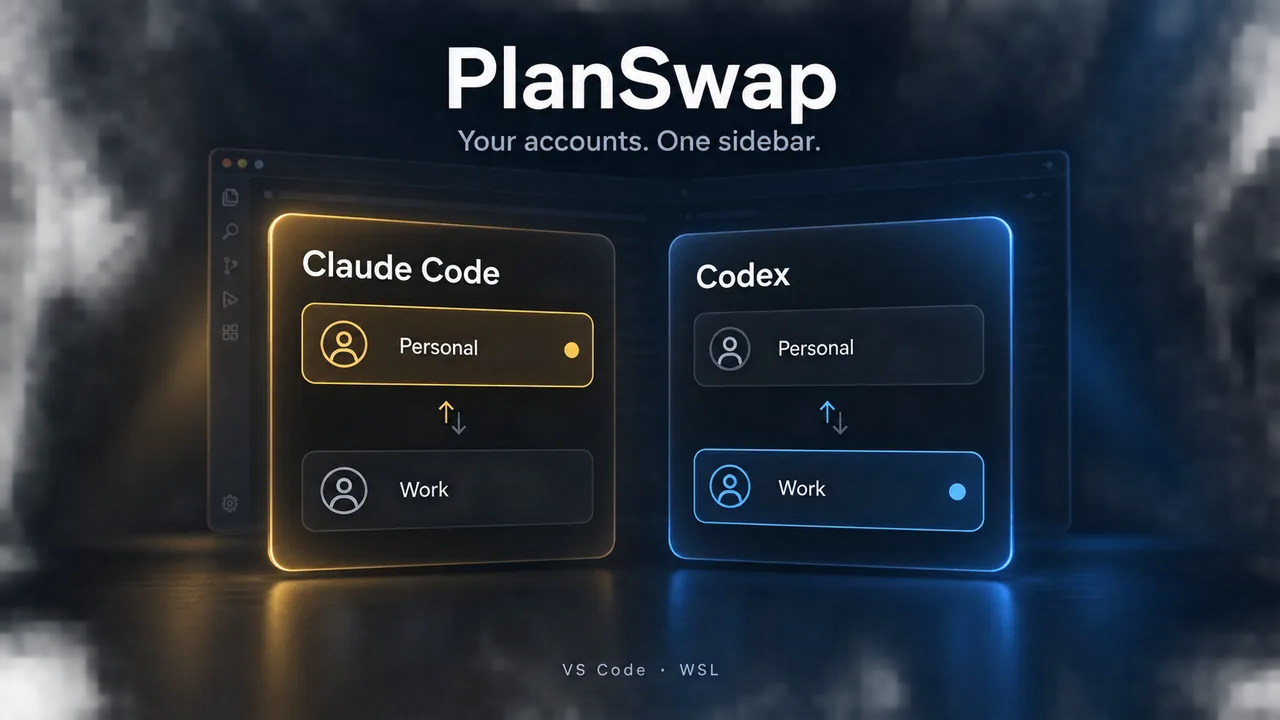
Say you have three AI plans. Your company gives you Claude Max for work projects, and you pay for Claude Pro yourself for open source and side projects.
You also have ChatGPT Plus. You use Codex for code review, or as a fallback when your Claude quota runs out.
By default, Claude Code and Codex each read a single config directory. Changing accounts means signing out, signing back in, and authorizing again.
In WSL, the browser sign-in callback often fails, so you end up copying an authorization code and pasting it back into the terminal.
We built PlanSwap, a VS Code extension, for this setup. The sidebar has a Claude tab and a Codex tab, with one row per account showing its email and plan.
Plans show up as Max 20x, Pro, or Plus. Click the switch icon on a row and new sessions use that account.
How Switching Works
Claude Code officially supports the CLAUDE_CONFIG_DIR environment variable. When it is set, credentials, settings, and session history live in that directory.
So one directory holds one signed-in account, and PlanSwap manages accounts on that basis.
The default account stays in ~/.claude, and other accounts go in ~/.claude-<name>. In the example above, the company Max lives in ~/.claude and your own Pro in ~/.claude-personal.
To switch, PlanSwap changes one entry: CLAUDE_CONFIG_DIR inside the official extension's claudeCode.environmentVariables setting.
The official extension reads that setting every time it starts a claude process, so new sessions pick up the new account right away without a restart.
Sessions that are already open keep the old account. A banner appears in the sidebar; click Reload Window and every panel starts over with the new account.
Codex works the same way with CODEX_HOME, using ~/.codex and ~/.codex-<name>.
Why PlanSwap Never Swaps Credential Files
A lot of account-switching scripts copy auth.json back and forth. We chose not to.
Codex refresh tokens are single use and rotate each time, and auth.json is not written atomically. If you keep an old copy and restore it a few days later, the token inside is likely no longer valid.
Signing in to a new account in the same CODEX_HOME also revokes the authorization of the account that was there before.
So PlanSwap doesn't touch credential contents. On the Claude side it only checks whether .credentials.json exists.
On the Codex side it reads auth.json and decodes the ID token payload locally to show the email and plan. Raw tokens are never logged, stored, or sent to the UI.
What a Codex Switch Costs
Switching Claude accounts costs almost nothing. Switching Codex accounts costs more.
The Codex backend reads CODEX_HOME once at startup and caches the credentials in memory. It doesn't watch the file and has no reload API, so the only way to change accounts is to restart it.
WSL remote windows add one more layer. The WSL server resolves the extension host's environment through a login shell, and it does this only once while the server process is running.
That means reloading the window doesn't help, and neither does restarting the extension host.
PlanSwap adds a small marked block to ~/.profile and ~/.bashrc that reads CODEX_HOME from a state file. Before writing it, a dialog shows you exactly what will be added.
When you switch, PlanSwap writes the state file first, then restarts the WSL server after you confirm.
Every WSL window disconnects at that point. Each one needs a Reload Window click to reconnect, and integrated terminals close.
We accept that cost, because dropping the connection once is safer than editing token files.
To turn it off, run Codex Account: Disable Codex Account Switching. It removes the marker blocks and the state file.
One Copy of Your Global Rules
More accounts also means more copies of CLAUDE.md and AGENTS.md.
The global rules you wrote under the company account are empty when you switch to the personal one. You would have to copy them by hand and keep them in sync after every edit.
When PlanSwap creates an account, it symlinks CLAUDE.md (Claude accounts) or AGENTS.md (Codex accounts) to the default account's copy. For accounts that already exist, click Sync rules to add the links.
Before You Install
PlanSwap only supports WSL/Linux. Native Windows and macOS are not supported.
It needs VS Code 1.107 or later. VS Code-based editors such as Antigravity IDE work too.
Install the official Claude Code or Codex extension on the WSL side. Codex switching also requires bash as the login shell.
PlanSwap doesn't show usage, and it won't switch accounts automatically when a quota runs out. You decide when to switch.
Each account has its own session history, so you need to switch back to continue an earlier conversation. A switch applies to every WSL window at once.
When you run claude in a terminal with a non-default account, the /ide integration will likely fail to connect. The official panel in the sidebar is not affected.
This happens because the official extension looks for its lock files using only the extension host process's own environment variables.
Account management happens locally in WSL. PlanSwap has no telemetry and makes no network requests of its own, and sign-in and AI requests go through the official clients.
Search for PlanSwap in the Extensions view of a WSL window to install it. It's on both the VS Code Marketplace and Open VSX.
The source code and design docs are on GitHub under the MIT license.
PlanSwap is an independent community project and is not affiliated with, endorsed by, or sponsored by Anthropic or OpenAI.